

Outlook: setting up
There are several ways to use email and the calendar in Outlook:
- Webmail: Accessible directly through your browser (outlook.office.com).
- Outlook application: The program installed on your computer for full functionality.
This manual explains, step by step, how to set up the Outlook application after Microsoft 365 has been installed.

-

Step 1
Make sure you are connected to the Internet. This can be an ethernet connection or a wireless (Wi-Fi) connection.
-
Step 2
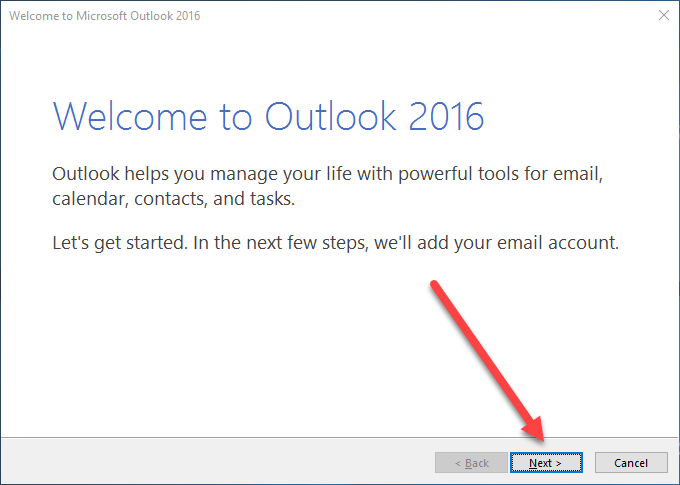
Start up Outlook.
If you have not used Outlook before, you will see this window. Click on ‘Next’.
-

Note: if you are using it already (e.g. for your private email), Outlook will show the default home screen as usual.
In that case, after starting Outlook, click on:
-
- ‘File’ at the top
- then ‘Account Settings’, ‘Account Settings…’
- then ‘Manual setup or additional server types’
- and continue with step 3.
-
-
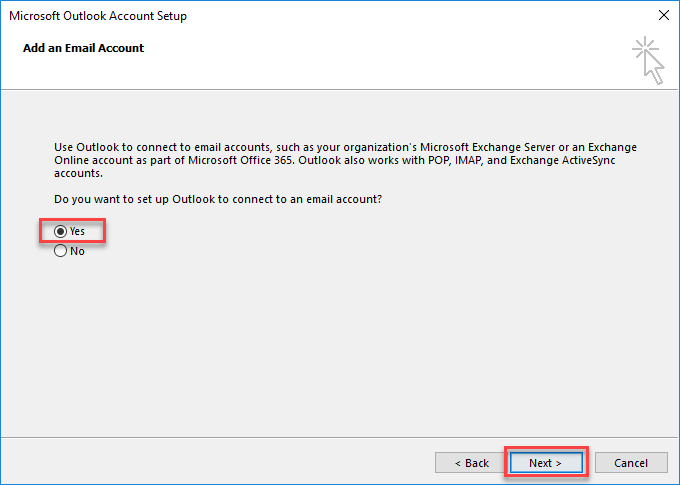
Step 3
Tick ‘Yes’ and click on ‘Next’.
-
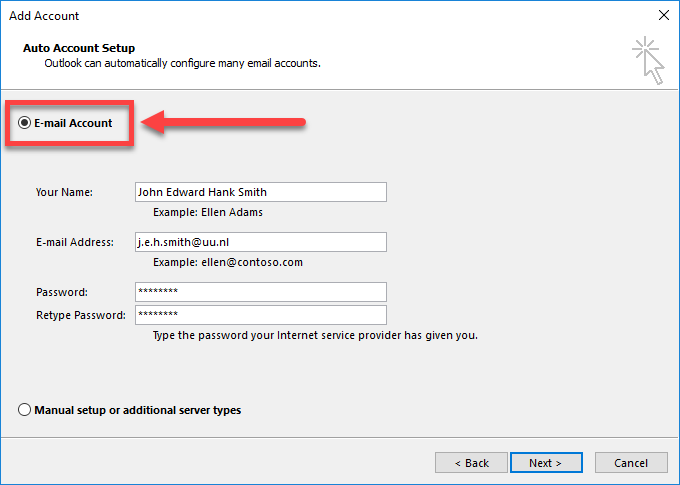
Step 4
Choose ‘E-mail Account’ and click on ‘Next’.
Fill in:
- Your Name: your name (does not matter what)
- E-mail Address: your UU email address including all your initials (this is your so called primary email address).
- Password: your Solis password
Click on ‘Next’.
-
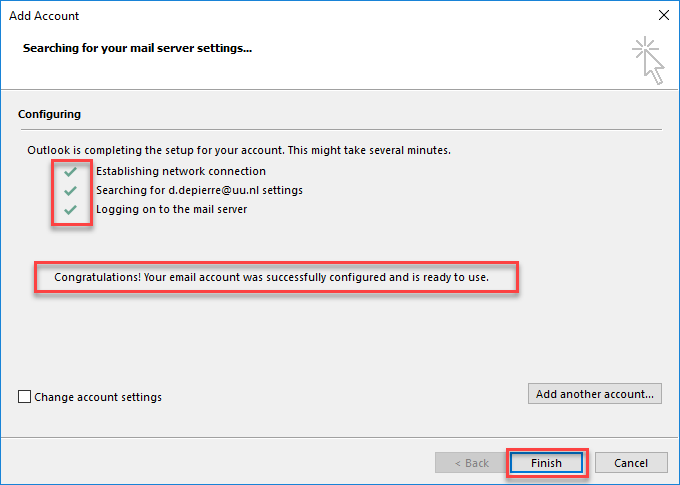
Step 5
The computer automatically searches for the correct settings.
Note: this may take a while! (up to several minutes).
-
Step 6
If prompted, fill in your Solis password.
Tick ‘Remember my credentials’.
When your email account is succesfully configured and ready to use (see step 5), click ‘Finish’.
Last modified: 9/09/2026