

MyTimetable: Add timetable to Proton Calendar
This guide describes how students at the university can link MyTimetable to their own Proton Calendar. When you link MyTimetable to Proton Calendar, the activities in your timetable become appointments in your Proton calendar. To link MyTimetable to Proton Calendar, follow the steps below.
-

Please note: This is only supported by the UU on a “best effort” basis. If you encounter any problems while following these instructions, there is no guarantee that UU IT Support will be able to assist you.
-
Step 1
Go to https://mytimetable.uu.nl. Log in if you haven’t already done so and add your timetables.
-
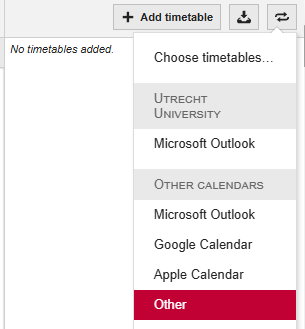
Step 2
Press the two pointing arrows in the top right corner, then click on “Other“
-
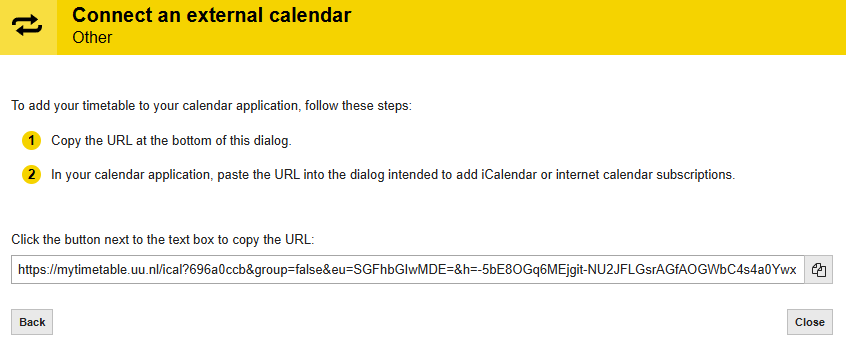
Step 3
Click “Next” in the new window, then copy the URL at the bottom of the window.
-
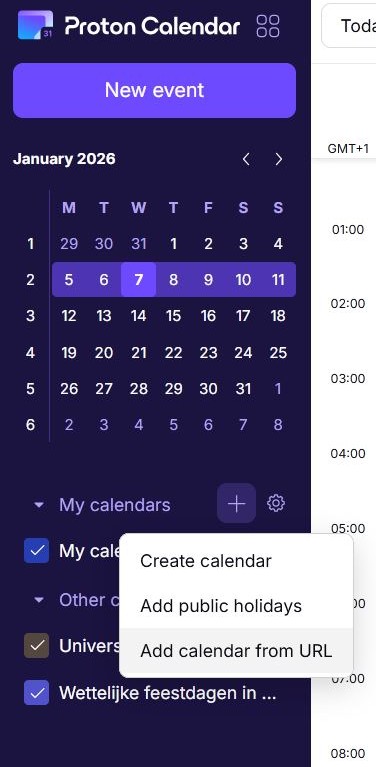
Step 4
Go to Proton Calendar, click on the “+” symbol in the left column, and select “add calendar from URL“.
-
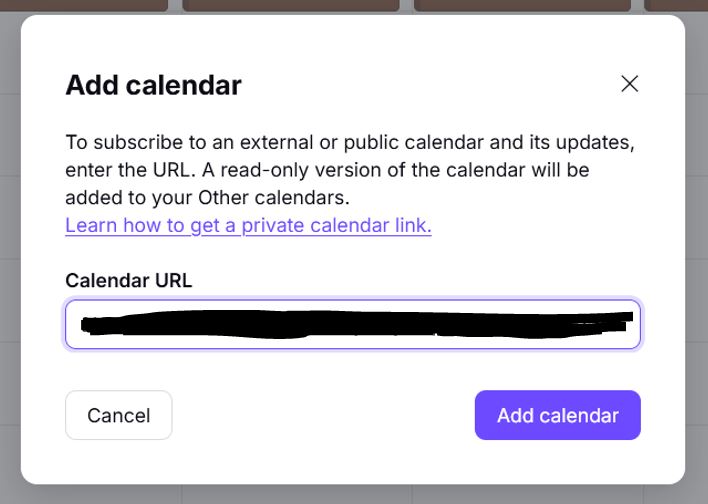
Step 5
Paste the URL into the field and click “Add calendar“.
Now your calendar is always up to date. If there are any changes to your schedule, these will also be implemented in your Proton Calendar.
Last modified: 16/01/2026