

Printers Canon: Getting started

Before you begin:
Employees:
Would you like to print directly from your own computer or a UU-managed computer to a new Canon printer? In that case, the old printer will no longer appear in the drop-down menu. You’ll need to install the new UU multifunction printers once and log in with your Solis ID. Once that’s done, the new printer will be installed, and you can select “UU multifunction printers” from the list of printers.
Follow the instructions for “installing the printer on your device.”
Students and guests:
Xerox credits do not work with Canon printers. For students, the credit will be transferred to your Canon account in early September. Until then, you’ll need a separate account for both Xerox and Canon. You can add credit to your Canon account via the Campus Portal or the Campus Print app. You can read how to do so on the Canon support page Top up your print credit.
Do you want to print directly from your own computer to a new Canon printer? In that case, the old printer will no longer appear in the selection menu. You’ll need to install the new UU multifunction printers once and log in with your Solis ID. Once that’s done, the new printer will be installed, and you can select “UU multifunctionals” from the list of printers. Follow the instructions for “installing the printer on your device.”
These are the new Canon Multifunctional, which will replace the Xerox Multifunctional starting August 2026.
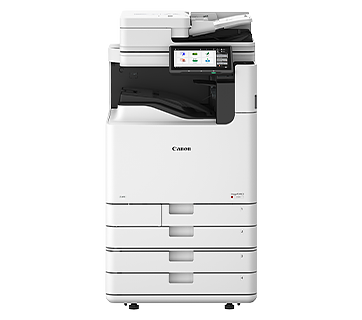
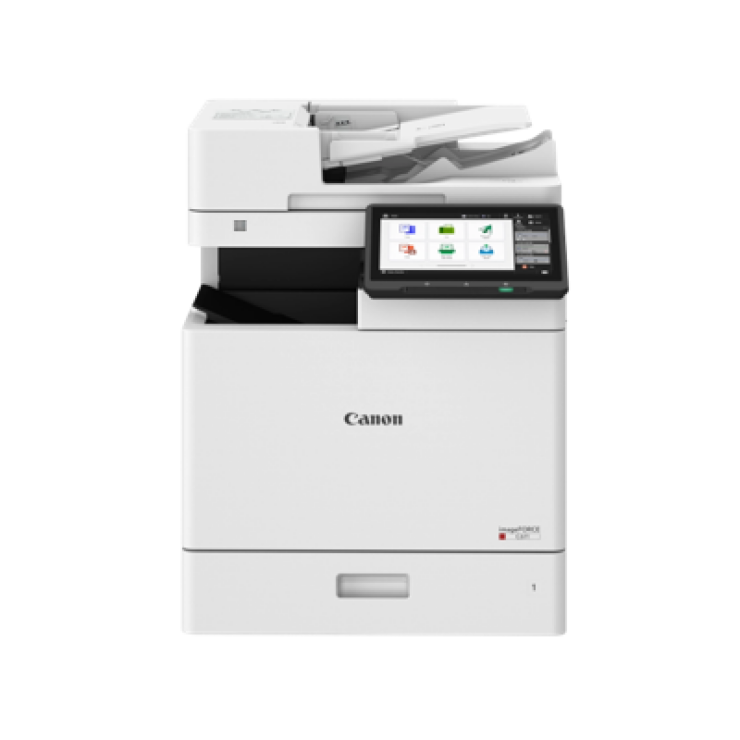
Which options are available for sending a print job to the printer?
Installing the printer on your device (employees)
To print to a Canon printer from your Windows or Mac device, you’ll need to install a program and log into it with your Solis ID: the Uniflow SmartClient. Linux uses the PPD. See below for instructions on how to install this for different devices (UU or personal).
Install the printer on a UU-managed Windows workstation
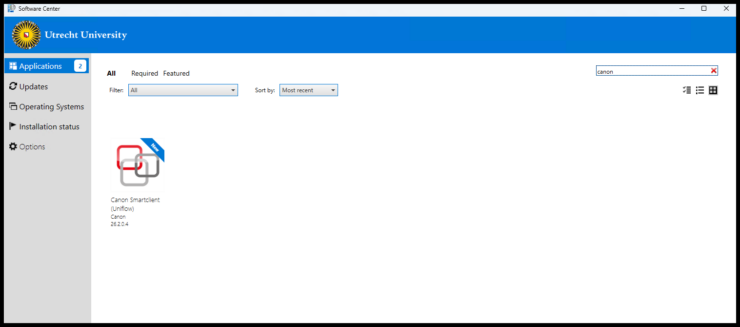
Go to the Software Center and download the ‘Canon Smartclient (Uniflow)’ application.
Check ‘Remember my identity provider choice’ and click Continue with Universiteit Utrecht.
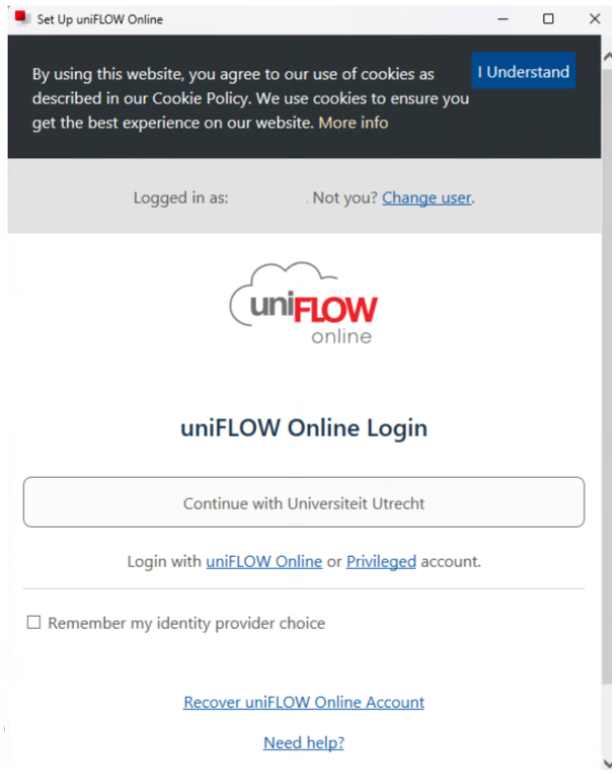
Enter your email address. If you don’t see this login screen, try restarting your computer.
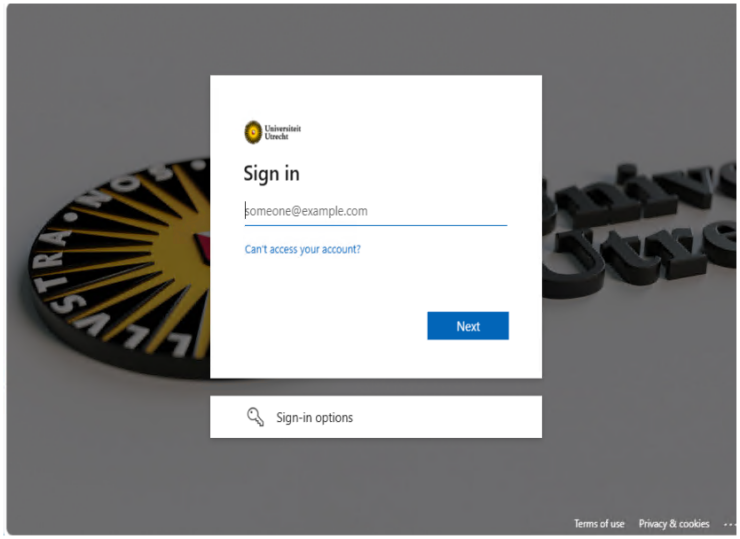
Complete the multi-factor authentication process, and your registration is complete.
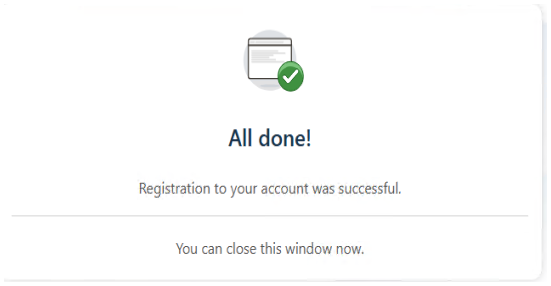
Restart your PC now to ensure the printer works properly.
Be sure to change the default printer to UU_Multifunctionals after registration.
Install the printer on a UU-managed Mac workstation
If you have a Mac managed by UU, you can find the Canon printer in UU Apps & Services
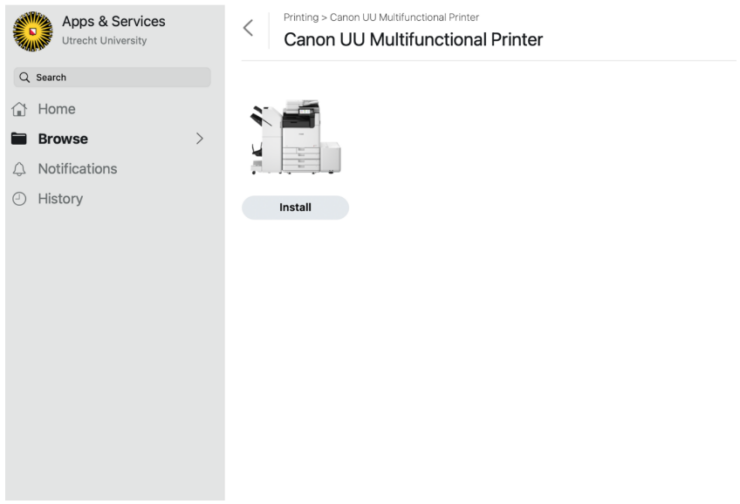
Check ‘Remember my identity provider choice’ and click Continue with Universiteit Utrecht.
Enter your email address. If you don’t see this login screen, try restarting your computer.
Complete the multi-factor authentication process, and your registration is complete.
Restart your PC now to ensure the printer works properly.
Be sure to change the default printer to UU_Multifunctionals after registration.
Install the printer on a private workstation
For Windows, follow the manual Installing the UU internet printer on Windows on Canon’s Support Site.
For Mac, follow the manual Installing UU Multifunctionals on MacOS on Canon’s Support Site.
For Linux, follow the manual Installing UU Multifunctionals on Linux vanaf de Canon Support site
Installing the printer on your device (students)
For Windows, follow the manual Installing the UU internet printer on Windows on Canon’s Support Site.
For Mac, follow the manual Installing UU Multifunctionals on MacOS on Canon’s Support Site.
For Linux, follow the manual Installing UU Multifunctionals on Linux vanaf de Canon Support site
Send a print job by e-mail
You can send a print job to the printer from your student or employee email account by emailing print@uu.nl.
For more information on how to do this from your personal email address please visit the Canon Support page: Print by email
Upload a print job in the Campus Portal
Read the Canon Support page Print using the UU Print Portal to learn how to send your print jobs through the Canon Print Portal.
How to print using the Campus Print app
The Campus Print app is available in the Play Store and Apple Store. See the Canon Support page: Printing with the Campus Print App for more information on how to use the app.
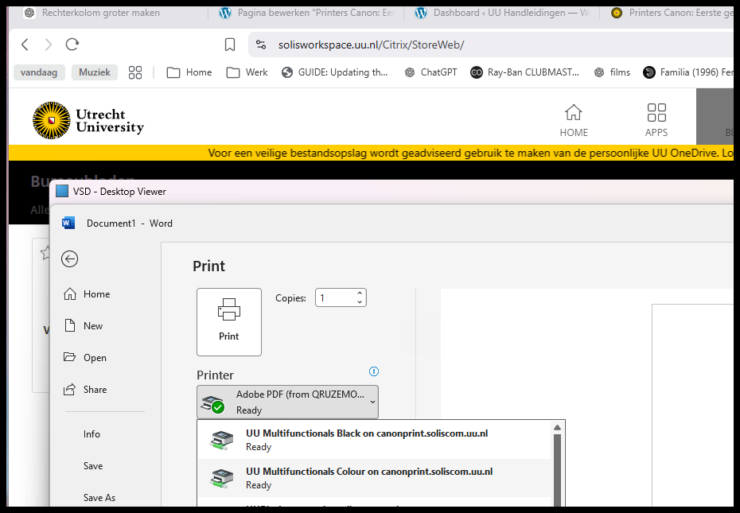
Print via Solisworkspace
To print from Solisworkspace, select one of the UU_multifunctional queues: Black or Color
Log in to the Canon Multifunction
All the methods for logging in to a Canon printer are described on the Canon Support page: Log in to a Canon printer. Students and guests can request a PIN on the website. The PIN will be sent via email, along with instructions on how to link a card.
Where can I find more information?
The manuals are a Work in progress.
- The Canon Support site contains a lot of information about the multifunction printers and procedures related to them.
- More manuals will be posted on the UU’s manuals site under “P” for printers in the near future. Starting tomorrow, the “Canon Printers: FAQ” section will be updated.
- If you have any further questions, please contact the ITS Servicedesk
Last modified: 9/09/2026