

Solis-mail on iPhone/iPad (Outlook app)
This manual explains how to set up your UU Solis-mail on an iPhone or iPad using the Outlook app.
Screenshots may differ on other devices or apps.
-
Step 1
If you are a UU employee and have been notified about SCEM you can only link your Office (Teams and Outlook) to your smartphone and tablet using that method. See these manuals for further instructions:
-

If you want to set up a non-personal mailbox on your iPhone or iPad, check out this manual: Non-personal mailbox: iPhone/iPad
-

Step 2
- Open the Outlook app on your iPhone
If you haven’t installed the app on your device go to the App store and download it from there.
-

Step 3
- Enter your UU email address
- Press ‘Add Account’ (Account toevoegen)
-
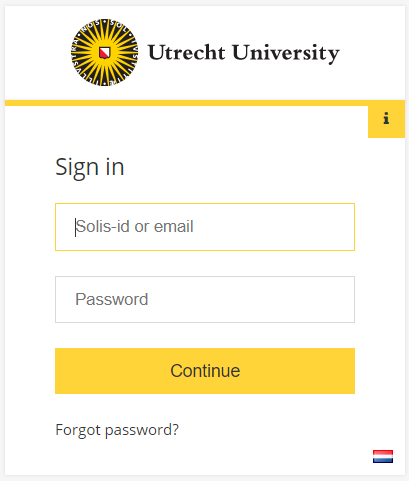
Step 4
- You will be redirected to the UU login page.
- Log in using your UU email address and Solis-password.
-
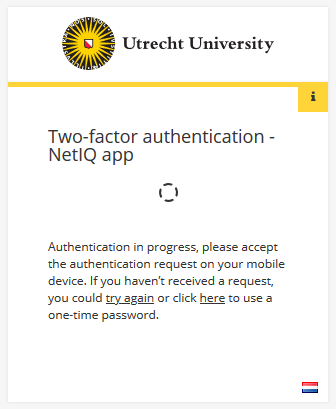
Step 5
You will then also be asked to log in with 2FA for security purposes.
-
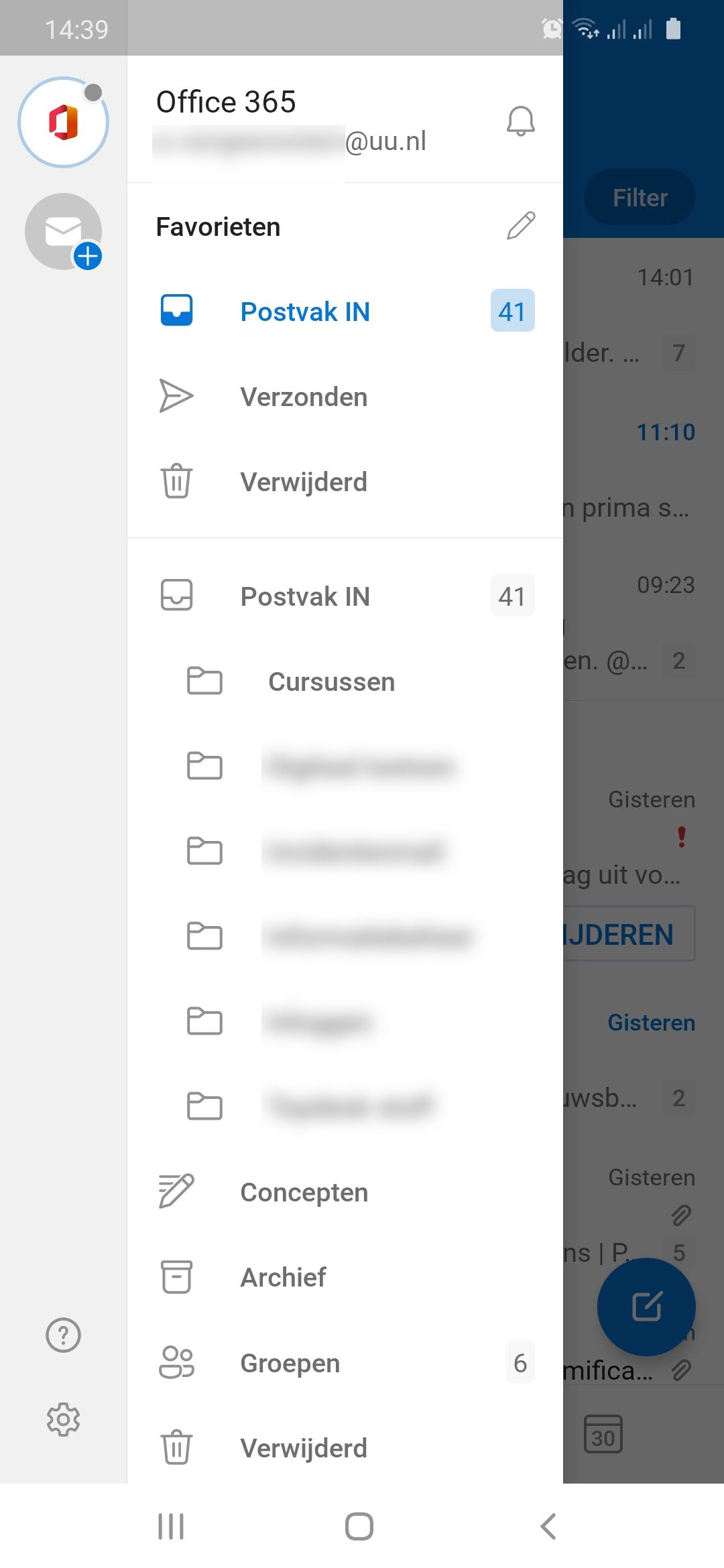
Step 6
- Your e-mail has now been set up.
Last modified: 1/06/2026